

New attribute editor is a set of keys replaces Maya’s default attribute option keys
Select 
Select current displayed node.
Modify 
Modify the components of the node.
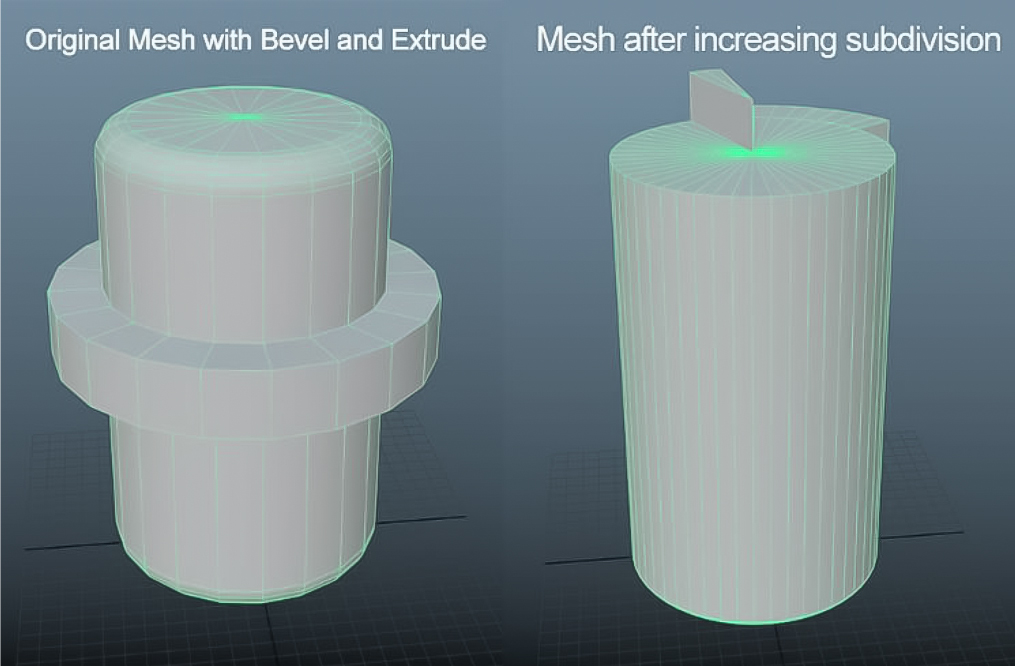
There are many cases when you are modeling, and you decide to modify one of the defined components for an operation. For example, you create a mode, you do some bevel and
extrude, and then you notice that it would be better if you
had more division when you first created the primitive.
Now if you add division at this point, it will ruin the whole
shape of the modifications.
As you can see both bevel and extrude are now applied to
the wrong components.
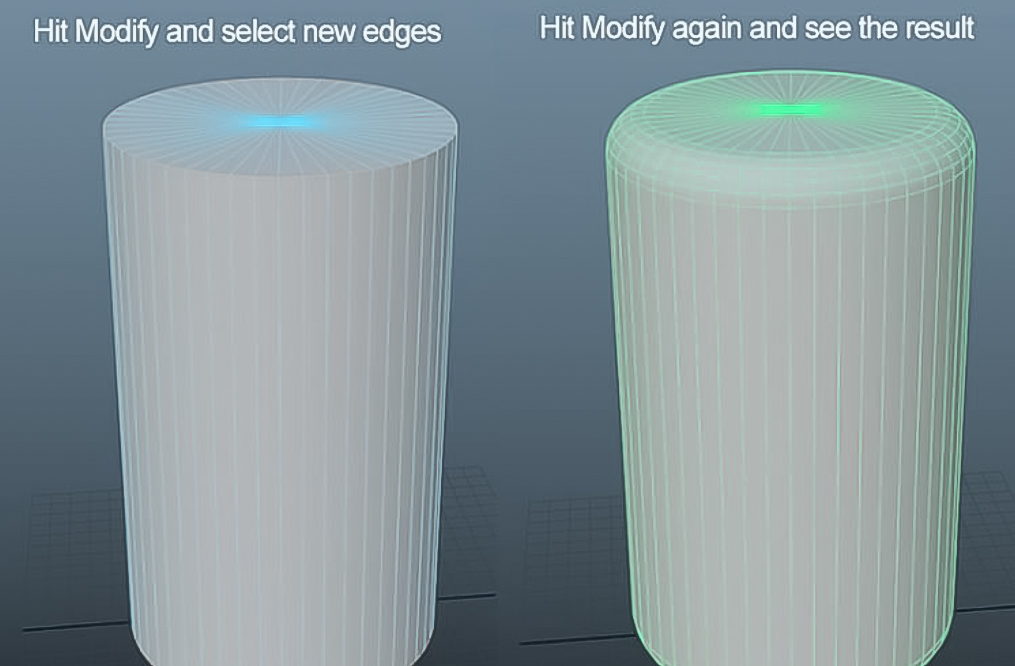
To fix this, go to the bevel tap in the attribute editor, and
press the “Modify” button.
Now select the edges where you want to apply the bevel
to and hit “Modify” again.
You can do the same for the extrude, go to extrude tab,
hit Modify, select the components for the extrusion, and
then hit Modify again.
Apply to All 
By default when you have multiple objects selected, and you modify something, those changes will only get applied to the last selected object.
This button helps you make changes in the attribute editor and have them applied to all the select objects.
I made it specifically for making changes to shapes and materials of multiple objects at the same time, but you can use it for most of the nodes, for example, if you have many objects and all of them have a PolyExtrude node you can modify all of those at the same time as well.
Go to the node you want to make changes to, hit “Apply to All”, make changes as you need, hit “Apply to All” again and those changes will get applied to all the selected objects.
Unique 
Copy your shading network.
Load Attribute 
Load current selection into attribute editor
Copy 
Copy current tap into a new floating window.