You can use the dynamic button to:
- +Make Cloth
- +Collision
- +Paint Wrinkle Map
- +Transform Constraint
- +Point to Surface Constraint
- +Tear Cloth
- +Create Dynamic Wires
Collision:
Select a cloth object, followed by the object that you want to use as collision, and then click on the dynamic button.
Cloth:
If you have poly objects selected, the dynamic button will turn them into cloth, none of the selected objects should already be part of a cloth simulation, or else the objects will turn into collisions for the selected cloth object.
Based on the name of the object, MayaX will try to decide whether it should set it to inflate or simulate it as a single sheet of cloth.
e.g. Flag, sheet, cloth, curtain, dress, shirt, … will have the default setting without inflating enabled.
Other names, like ball, sphere, cube, cylinder, … will have to inflate enabled.
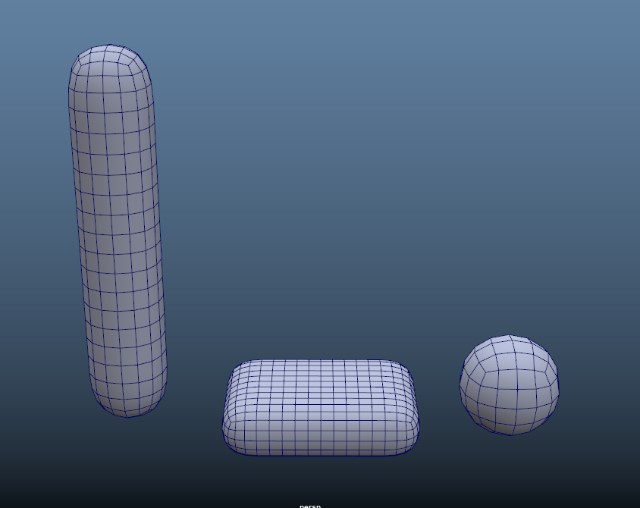
If you want to make something like a pillow or cushions, you can use the new “Cube Smooth” primitive.
You can find Cube Smooth Primitive in the Toolbox.
This primitive automatically adds division to the longest side of the cube.
You also have a poly smooth Node which you can use to add more division to the cube.
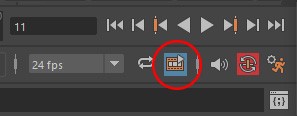
For Maya 2020 and newer you can enable dynamic cache and see the changes you make without using playback.
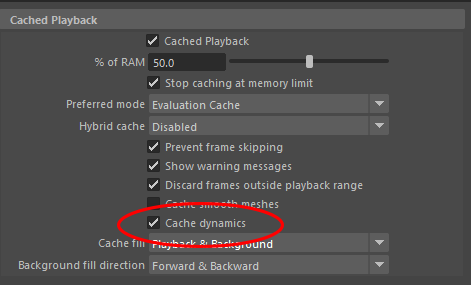
Also, make sure to enable “Cache Dynamic” in the cache playback preference.
After you make a cloth using the dynamic button, you will see that the timeline will jump to frame 11.
If you select your object now, you will see that it also has a keyframe at frame 1.
This will help you position your cloth in the scene, with a dynamic effect.
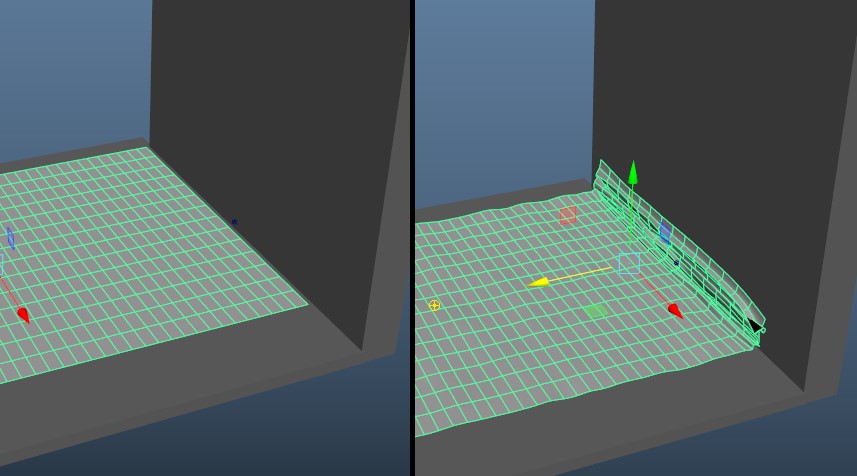
So if you move your cloth object toward a wall it will act as if you have pushed it against the wall and cause the cloth object to fold instead of just moving the mesh to that location without any dynamic.
If you want to just move the object to somewhere else without any dynamics, you should do it on frame 1 and set a key on that frame.
Practice:
Enable both, Dynamic Cache and Auto Key, if you are using an older version of Maya, you should hit play to see the effect.
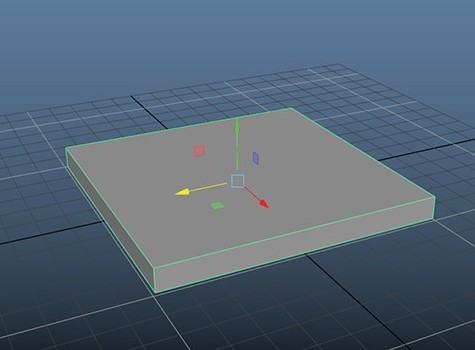
1. Create a cube object like this (as our collision)
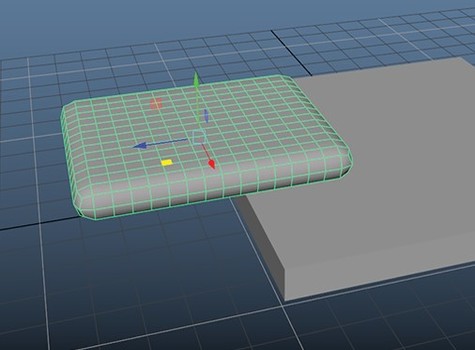
2. Create a smooth cube object to use as cloth
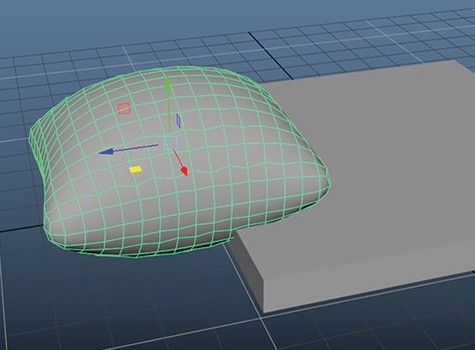
3. with cloth selected, press the Dynamic button
You can see that the cloth got inflated but it’s not colliding with the ground
4. with both cloth and ground selected press the dynamic button
The Ground is now acting as a collision for our cloth object
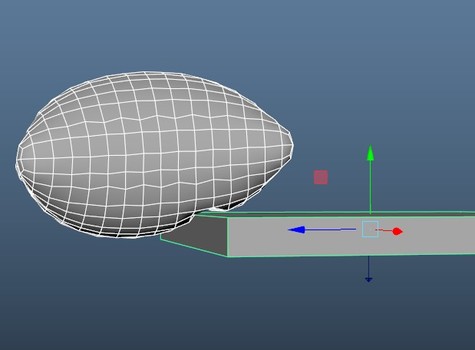
5. with Autokey enabled, drag the object down to make it press against the collider.
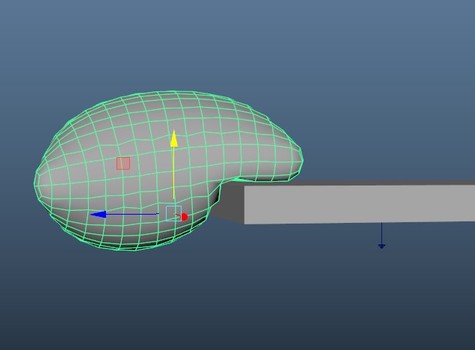
by default, inflated objects works just fine with this system but if you use a sheet instead, you should increase the “MeshAttract” from the channel box to let the cloth follow the movement you just made.