
Masking
You can mask textures by Flowmap, Alpha, Height Map,
or Directional Coverage
To mask a texture, select its handle and then the
handle of terrain to you want to use its data and
then right click on  button and a menu will
appear, in the menu you can choose which mask you want to use.
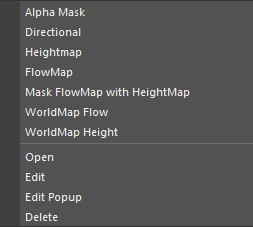
When you have more than one terrain handle and want to use flow mask the result will look wired because the texture appears on other handles, just select texture handle and the terrain handle and click mask flow map with height map.
A remap menu will open, from there u can set the radius of mask.
If you want to access this ramp again, select the texture handle and double-click on

Select and modify texture mask
To select a mask just select a texture handle and single click
this icon and it will show you its attribute.
For heightmap and flow map you will get a Remap Ramp where you can easily select the area of the map that you want to mask.
for directional masking you will get snow attribute Threshold, Determines the slope that holds snow.
The range is 0 (90 degrees from horizontal) to 1 (0
degrees from horizontal)
Depth Decay: The rate at which the snow color blends into the surface color. the range is 0 to 10.
Thickness : The apparent depth of the snow. Thickness controls the opacity of the snow (deeper snow is more opaque). The range is 0 (transparent) to 1 (opaque).
Organization Tip:
This is just a personal preference, you can actually put texture
handles anywhere in the scene, but I usually put them on top of
each other over the mountain that they are covering, it’s a lot
easier to read them this way.
