
Geo paint
With geo paint you can make things like Corona Arch, stalagmite, stalactites, rock bridges all sorts of natural erosion and stuff.
To start making a shape with geo paint, just press  button from the shelf.
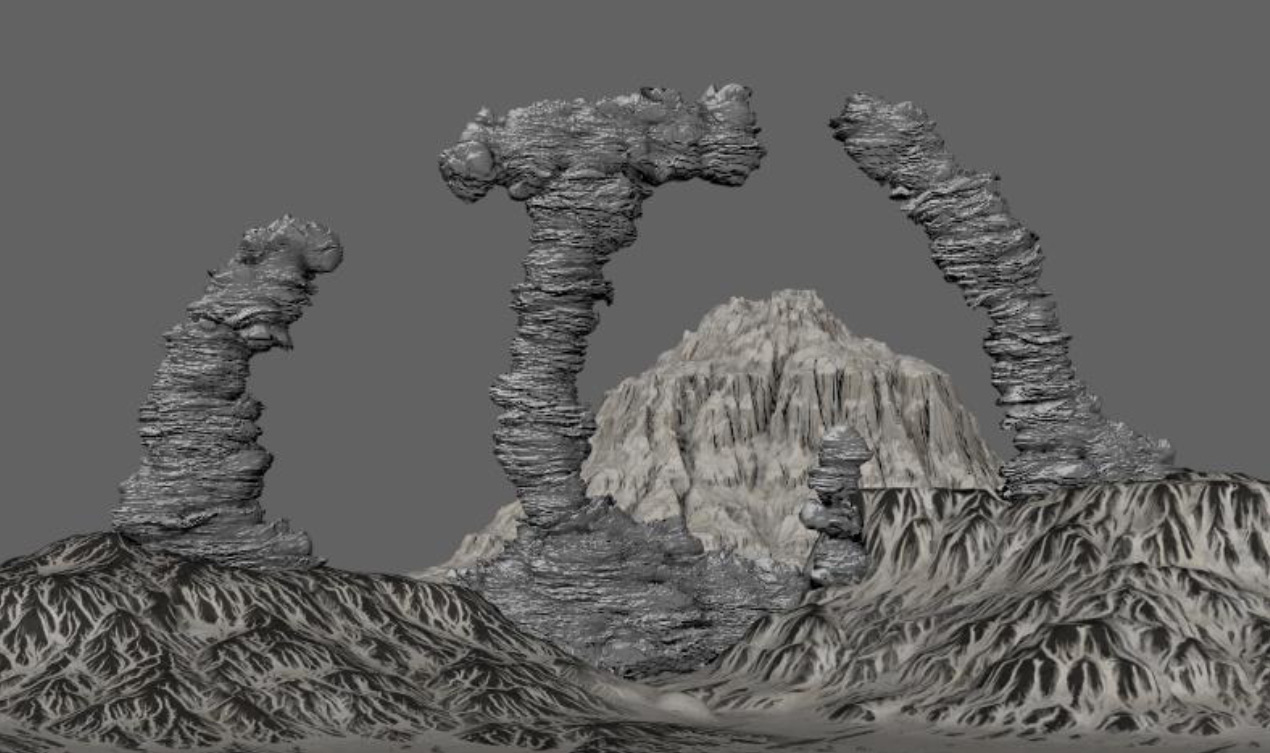
As soon as you press this button your navigation will be locked to geo Paint emitter, and your frame Range will be limited to 20 frames, now just move around and resize the geoPaint to draw your mesh.
Note: as soon as you jump to frame 0, everything will be erased! After have created your shape make sure to remove geopaint.
Erase GeoPaint
As soon as you Press  button the brush will start erasing your mesh
Just note that erasing has a bit of drop-off, so the brush should be big enough to see its effect.
Remove geo paint and time limit
To remove the emitter and frame limit, right click on the icon and choose “remove time limit and emitter, be careful not to accidentally hit “delete” as that will remove the icon from the shelf! And has nothing to do with the script.
Add new layer to geo paint
Using Geopaint layers is very similar to using detail maps.
To create a new layer just select Geopaint mesh and press  button.
The layer will be added as displacement map. To view it in viewport you can select the mesh and press Alt+3 but I recommend using IPR render to see the real quality of the displacement.
Geo paint falloff
Just like terrains or detail map. select a GeoPaint layer handle and press  .
.
Beware that what Maya shows in viewport is different from what you see in render, so make sure to also check with IPR render when you are modifying falloff.