
Create Terrain Surface
Add a terrain
The first button on the shelf. 
Unlike easy terrain 1 you can now add new terrain surfaces at any time and all terrain handles willaffect the new surface too.
Use A custom mesh
The Second button on the shelf. 
(don’t use this on a mesh that is already aterrain surface)
You can use any mesh as terrain surface whether it’s a simple sphere or a person like te fiti in moana or
maybe a dead giant’s body that has turn into mountains over years or maybe you want your landscape
to be on the back of a turtle it is all possible, just select your mesh and press the second button on theshelf and that object will turn into a terrain surface.
Add new terrain handle
Select your mesh and press the + icon on the shelf 
and it will add a new terrain handle.
You can select the handle and move it around.
If you scale it in z axis it will increase the height of terrains
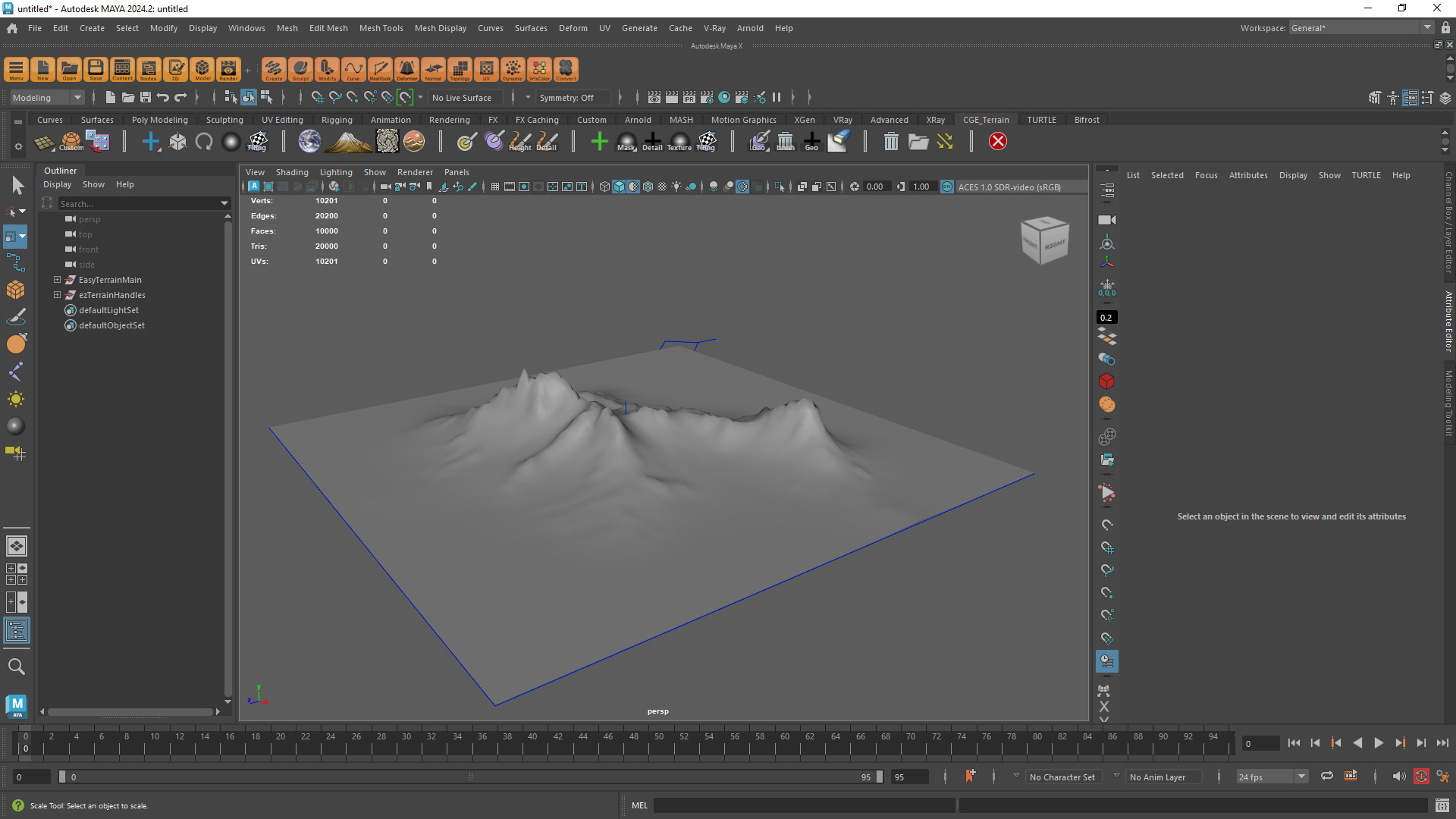
Add multiple terrains
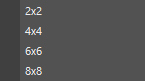
select the terrain and right click on and select one of options if you select 4*4 for exaple it will crate 4 rows and 4 columns of terrains
Blending mode
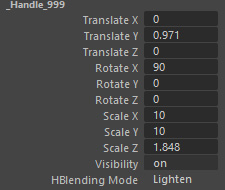
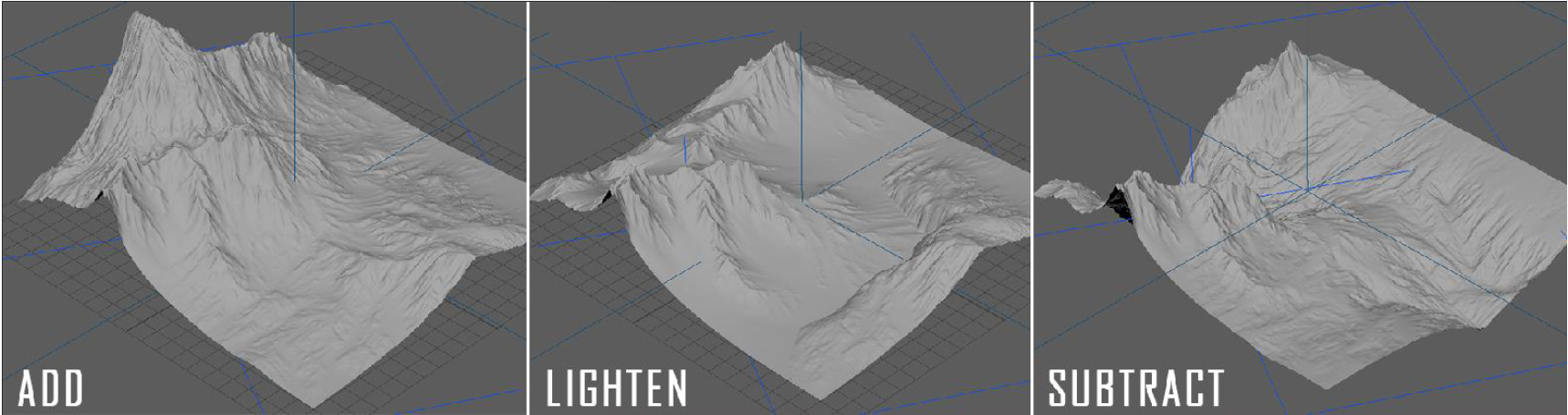
If you look at channel box there is a parameter called HBlending Modeto change blending mode of terrain.
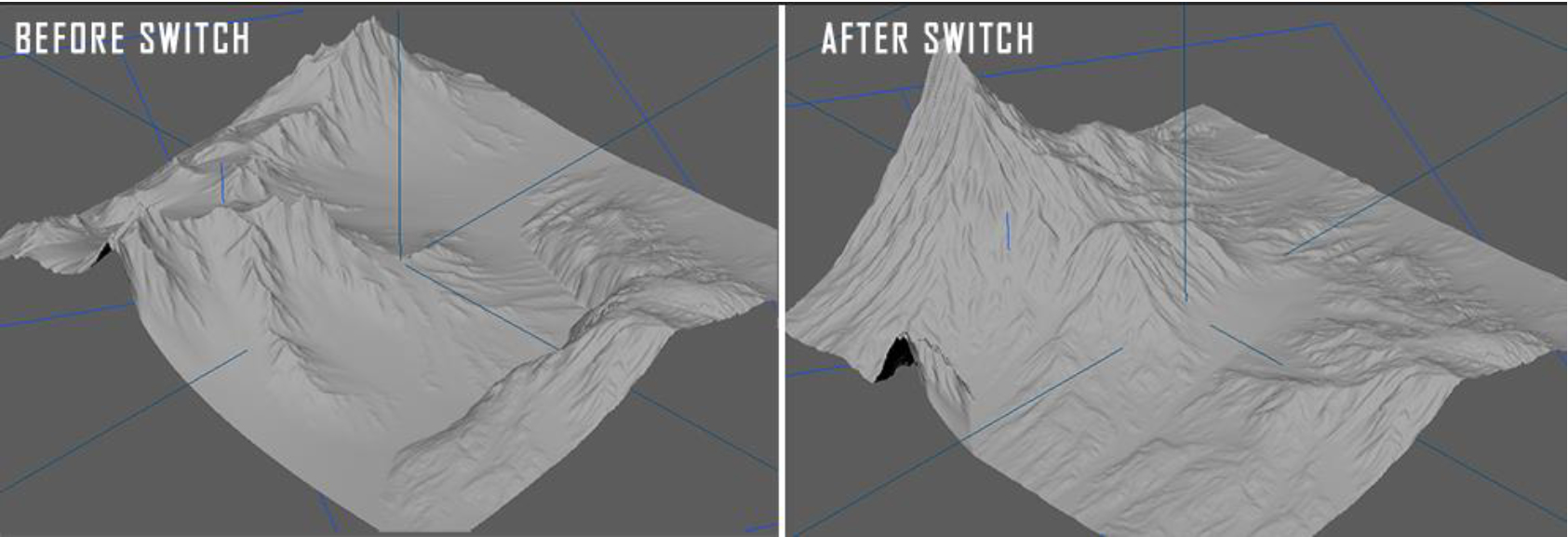
Switch layer order
Select two terrain handles thatyou want to switch their orderand press the  icon.
icon.
Imagine it like layers in photoshop, the top layer is theone affecting the lower layers,when you switch layers youswitch their position in the list.
Removing a layer
You can remove a terrain or texture layer by selecting its handle and press the  button.